


Download Alive Bookmark – Free Windows Bookmarking Tool & Screenshot‑Style Saver
Overview
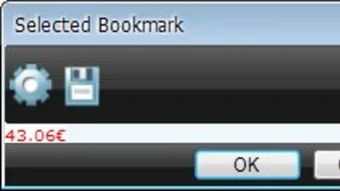
Alive Bookmark is an innovative bookmarking utility created by Emergency Soft for Windows PCs. Unlike traditional bookmark managers that merely store a URL, Alive Bookmark lets you capture a specific portion of a web page—much like a screenshot editor—and turn that visual slice into a live link. The concept is both creative and functional: you select the exact area of interest, save it, and the program generates a miniature window that displays the chosen fragment whenever you open the bookmark.
This approach is especially handy for users who need to keep an eye on changing sections of a site, such as price tables, stock tickers, or news headlines, without reopening the whole page each time. While the core idea is compelling, the workflow requires you to browse inside Alive Bookmark’s own window to add new links, which can feel a bit restrictive compared to native browser extensions. Nevertheless, once a collection of “alive” bookmarks is built, they appear as compact, interactive windows that sit comfortably alongside your regular browser tabs, offering instant visual cues and faster navigation.
The tool is completely free, lightweight, and positioned as a niche solution for power users, designers, researchers, and anyone who appreciates a more visual way of organizing web resources. Its sleek interface, minimal system footprint, and the novelty of turning a static screenshot into a dynamic shortcut make it stand out in a crowded market of generic bookmark managers.
Key Features
- Screen‑Area Selection: Choose any rectangular region of a web page and save it as a bookmark, similar to a photo‑editing crop tool.
- Live Preview Windows: Saved bookmarks open in small, always‑on‑top windows that refresh the captured area automatically.
- Visual Organization: Thumbnails of each bookmarked section are displayed in a grid, making it easy to locate the right link at a glance.
- One‑Click Access: Double‑click a thumbnail to open the live window; right‑click for quick edit or delete options.
- Lightweight Engine: The application runs in the background with a memory footprint under 30 MB, ensuring it doesn’t slow down your primary browser.
- Free & Secure: No hidden fees, ads, or telemetry; the installer is digitally signed by Emergency Soft.
- Export/Import Capability: Export your bookmark collection to a JSON file for backup or share it with teammates.
- Automatic Updates: The program checks for updates at startup and installs patches without requiring manual downloads.
Installation & Daily Use
Getting Alive Bookmark up and running is straightforward, even for users who are not technically inclined. Follow these steps to install and start using the tool effectively:
- Download the Installer: Click the “Download Alive Bookmark” button on the official website. The file is a small
.exepackage (≈4 MB) that is signed by Emergency Soft. - Run the Installer: Double‑click the downloaded file. Windows SmartScreen will prompt you to confirm the source; click “Run” to proceed. The installer uses a wizard interface: Accept the license agreement, choose the default installation folder (C:\Program Files\AliveBookmark), and click “Install”.
- Launch the Application: Once installation finishes, a shortcut appears on your desktop and in the Start menu. Open it; the first launch may ask for permission to run as an administrator to access the screen‑capture API—grant it for full functionality.
- Create Your First Alive Bookmark: In the main window, click the “Add New” button. A lightweight browser pane opens. Navigate to the website you want to capture, then click the “Select Area” icon (a dotted rectangle). Drag the cursor over the exact portion you wish to bookmark, release the mouse, and hit “Save”. The captured region appears as a thumbnail in the library view.
- Use Live Windows: Double‑click any thumbnail to open a small, floating window that continuously shows the selected area. You can resize or dock the window, and it will refresh automatically every few seconds (adjustable in Settings).
- Organize & Manage: Right‑click a thumbnail to rename, tag, or delete the bookmark. Use the “Folder” view to group related bookmarks together, making large collections manageable.
- Backup & Sync: Periodically export your collection via the “File → Export” menu. Importing works the same way, allowing you to move your bookmarks to a new PC or share them with colleagues.
- Stay Updated: The app checks for updates each time it starts. If a new version is available, a discreet notification appears; click “Update” to download and install the latest features and security patches.
Overall, the workflow is designed to be visual first, reducing the reliance on text‑heavy bookmark lists. Users quickly adapt to the “capture‑then‑save” routine, especially when they need to monitor dynamic web sections that change frequently.
Compatibility, Pros & Cons
Alive Bookmark is built exclusively for Windows operating systems, supporting Windows 7, 8, 10, and 11 (both 64‑bit and 32‑bit builds). The application leverages native Windows APIs for screen capture, ensuring high‑resolution rendering of bookmarked areas without requiring additional drivers or third‑party libraries.
Pros
- Unique visual bookmarking method that saves a specific page region.
- Live preview windows keep information in sight without opening full pages.
- Very low memory usage; runs smoothly alongside heavy browsers.
- Free, ad‑free, and no hidden data collection.
- Easy export/import for backup and team collaboration.
- Automatic update mechanism keeps the tool current.
Cons
- Bookmarks can only be added from within the Alive Bookmark browser window, limiting convenience for users accustomed to right‑click “Add to bookmarks” in mainstream browsers.
- Only available for Windows; macOS, Linux, Android, and iOS users cannot use the tool.
- Live windows refresh at a fixed interval (default 5 seconds), which may be too slow for fast‑changing data.
- No built‑in synchronization with cloud services like Google Drive or OneDrive.
- Advanced users may miss features such as tag‑based search or AI‑driven recommendation.
Overall Rating: 4 out of 5 stars – a fresh take on bookmarking that shines for visual learners and power users.
FAQ
Is Alive Bookmark completely free?
Yes, the application is free to download, install, and use. There are no hidden fees, premium tiers, or subscription requirements.
Can I use Alive Bookmark on macOS or Linux?
Currently, Alive Bookmark is only supported on Windows platforms. The developer has indicated interest in expanding to other OSes, but no official timeline has been announced.
How often do the live preview windows refresh?
By default, the preview windows refresh every 5 seconds. Users can change the interval in the Settings menu, ranging from 1 second to 30 seconds.
Is my data safe? Does Alive Bookmark collect any personal information?
Alive Bookmark does not collect or transmit any personal data. All bookmarks are stored locally on your device unless you choose to export them.
Can I sync my bookmarks across multiple Windows PCs?
Direct synchronization is not built into the app, but you can manually export your bookmark collection on one PC and import it on another. Using a cloud‑storage folder (e.g., OneDrive) for the exported JSON file makes this process smoother.
Conclusion
Alive Bookmark delivers a fresh, visual twist on the age‑old problem of keeping web resources organized. By letting you capture a precise screen region and turning that snapshot into a live, constantly updating shortcut, the tool fills a niche that traditional bookmark managers simply cannot. Its lightweight footprint, free licensing, and straightforward interface make it an attractive option for Windows power users, designers, and anyone who needs to monitor changing web content at a glance.
While the requirement to add links from within its own browser window and the lack of cross‑platform support may deter some, the overall value proposition remains strong for its target audience. If you’re looking for a way to keep important price tables, news tickers, or dashboard widgets visible without juggling dozens of full‑page tabs, give Alive Bookmark a try. Download the free installer now and experience a more dynamic way to bookmark the web.







